This help page covers the web interface to control the operation of the PDP-8. Help is also available on Manual operation, Operating systems, Languages
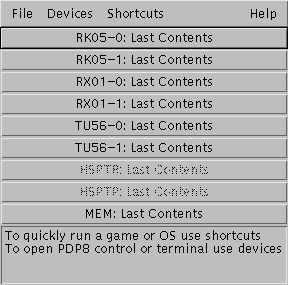
After clicking on link to start the PDP-8 web interface you should see the main control window as shown below. You may click on the pictures below for help on the selected item.

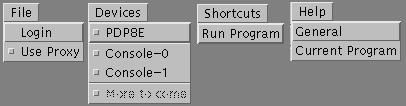
- The File menu has two items, login and use proxy.
- The login sub menu allows you to access a private file space for saving your work. If you don't use this menu to login you can use all functions except saving disk images for use in a later session. It also allows creation of a new account for your use. Please enter a valid email address, I will delete bogus accounts. I will not give out your email address without your permission. I may contact you to ask if you had any problems
- The use proxy item allows you to force communications to be via http. Normally the program will automatically select the best method so should not be changed. If you get communication errors try selecting this option.
- The Devices menu controls display of the PDP-8 web interface
for the various devices available. You may display any set of them. If you
turn one back off it will hide the display so it can be redisplayed later.
- The PDP8E item displays a simulation of the PDP-8E front panel. This allows you to power on the equipment and to control the processor.
- The Console items display terminal emulator windows connected to the PDP-8 console serial ports. This is where you enter commands and see results. Console 0 is the main console, console 1 is used with the ETOS operating system.
- The Shortcuts menu allows easy operation of the PDP-8 without having
to learn the details of operating the machine.
- The run program dialog gives a list of games, languages, operating systems and other programs available to run. When you select one the PDP-8 will automatically go though all the steps necessary to start the selected program running.
- The Help menu gives help on operation of the PDP-8 and the software running on it.
The image chooser dialog is started by clicking on the button for the device you wish to access. It selects what image to copy onto or save from the mass storage devices available. This is equivalent to putting a new disk into the drive which is how you would do it if operating the PDP-8 directly.
If you use the popup action on the button (right mouse button under Microsoft windows) you will get the device popup menu to perform operations on that device.
- The device popup menu allows you to perform operations on the
selected device.
- The boot item runs the standard bootstrap for the device. This is what you would do to start an operating system running. If you have not loaded an image on the device it will run whatever the previous user left on that device.
- The show boot item performs the same operation as the boot item except that the steps required to perform the bootstrap are show on the PDP8E front panel. At the bottom of the front panel a description of the operation being performed will be shown.
Feel free to contact me, David Gesswein djg@pdp8online.com with any questions, comments on the web site, or if you have related equipment, documentation, software etc. you are willing to part with. I am interested in anything PDP-8 related, computers, peripherals used with them, DEC or third party, or documentation.
PDP-8 Home Page PDP-8 Site Map PDP-8 Site Search